💻 Programming
There are two main programming methods supported and tested with the Smart Plant:
ESPHome
Arduino
In both scenarios, and if you are using the USB port or the Serial port for programming it, you will first need to enter the board into flashing mode: press and hold the Flash pushbutton while you reset the board (pressing once the Reset pushbutton).
Caution
When flashing the board, make sure its only powered by the USB/Serial port.
ESPHome
ESPHome is a well known platform for programming ESP-based devices with a very little effort. It is configured via YAML files and supports a wide range of functionalities and sensors.
Hint
For using ESPHome, and all its funcionalities, you need to have a Home Assistant instance running in the same network as your Smart Plant.
The Smart Plant comes raw, without any firmware by default, therefore, you will need to flash it for first time. There are many ways to flash your ESPHome device (locally, ESPHome Web), but the one I strongly recommend is the one through the ESPHome Add-on for Home Assistant:
Error
For the last months, the ESPHome Web web has been having some issues when trying to flash ESP32-S2 modules. Therefore the best way to flash it for first time is with the ESPHome HA (Home Assistant) add-on running on a Raspberry Pi and the Smart Powermeter connected to the RPi.
Make sure your ESPHome Add-on for HA is up to date and working.
Add a new device, enter the name you want (like Smart-Plant), and skip the next step.
Select the ESP32-S2 as the device type, skip the last step (installation). You will have created a provisional first configuration YAML file.
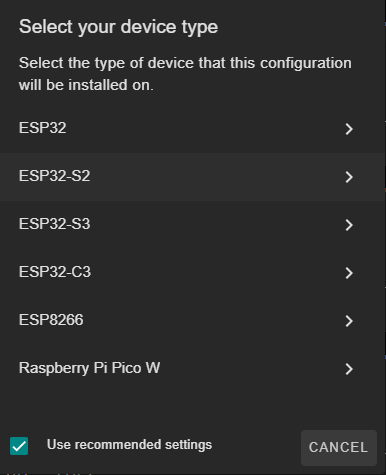
Open the recently created file and replace the content with the example configuration
smart-plant.yaml
Note
You might need to keep the encription keys OTA and API
  1substitutions:
  2  device_name: "smart-plant"
  3  friendly_name: "Smart Plant"
  4  project_name: "smart.plant"
  5  project_version: "2.2"
  6  ap_pwd: "smartplant"
  7  # IANA timezone string — find yours at https://en.wikipedia.org/wiki/List_of_tz_database_time_zones
  8  timezone: "UTC"
  9
 10esphome:
 11  name: "${device_name}"
 12  name_add_mac_suffix: true
 13  project:
 14    name: "${project_name}"
 15    version: "${project_version}"
 16  # Start the main loop immediately after boot. SNTP sync is handled
 17  # asynchronously via on_time_sync below, which triggers a display refresh
 18  # the moment time becomes valid — no fixed delay needed.
 19  on_boot:
 20    priority: 600
 21    then:
 22      - script.execute: consider_deep_sleep
 23
 24
 25esp32:
 26  board: esp32-s2-saola-1
 27  framework:
 28    type: arduino
 29
 30# Enable logging
 31logger:
 32
 33api:
 34
 35# Enable MQTT for deep sleep compatibility instead of the api if you preffer to use MQTT
 36# mqtt:
 37#   broker: !secret mqtt_broker
 38#   discovery: true
 39#   discovery_retain: true
 40#   birth_message:
 41#   will_message:
 42#   log_topic:
 43
 44# Enable Over The Air updates
 45ota:
 46  - platform: esphome
 47
 48#Public location of this yaml file
 49dashboard_import:
 50  package_import_url: github://JGAguado/Smart_Plant/docs/source/files/configuration.yaml@V2R1
 51  import_full_config: false
 52
 53# Enable fallback hotspot (captive portal) in case wifi connection fails
 54captive_portal:
 55
 56improv_serial:
 57
 58wifi:
 59  fast_connect: true
 60  power_save_mode: none  # Disable WiFi modem sleep for faster reconnection on wake
 61  ap:
 62    password: "${ap_pwd}"
 63
 64
 65i2c:
 66  scl: GPIO34
 67  sda: GPIO33
 68  scan: false
 69  id: bus_a
 70
 71spi:
 72  clk_pin:  GPIO12
 73  mosi_pin: GPIO11
 74
 75image:
 76  - file: "https://smart-plant.readthedocs.io/en/v2r1/_images/Lemon_tree_label_page_1.png"
 77    id: page_1_background
 78    type: binary
 79    invert_alpha: true
 80
 81font:
 82  - file: "gfonts://Audiowide"
 83    id: font_title
 84    size: 20
 85  - file: "gfonts://Audiowide"
 86    id: font_subtitle
 87    size: 15
 88  - file: "gfonts://Audiowide"
 89    id: font_parameters
 90    size: 15
 91  - file: 'gfonts://Material+Symbols+Outlined'
 92    id: font_icon
 93    size: 20
 94    glyphs:
 95      - "\U0000ebdc" # battery empty
 96      - "\U0000ebd9" # battery 1 bar
 97      - "\U0000ebe0" # battery 2 bar
 98      - "\U0000ebdd" # battery 3 bar
 99      - "\U0000ebe2" # battery 4 bar
100      - "\U0000ebd4" # battery 5 bar
101      - "\U0000e1a4" # battery full
102      - "\U0000e627" # sync
103
104time:
105  - platform: sntp
106    id: esptime
107    timezone: "${timezone}"
108    servers:
109      - "162.159.200.1"    # Cloudflare NTP (stable anycast IP — no DNS needed)
110      - "216.239.35.0"     # Google NTP
111      - "pool.ntp.org"     # fallback
112    on_time_sync:
113      then:
114        - component.update: my_display
115
116switch:
117  - platform: gpio
118    pin: GPIO4
119    id: exc
120    icon: "mdi:power"
121    restore_mode: ALWAYS_ON
122    internal: true
123
124
125sensor:
126
127  # Battery level sensor
128  - platform: max17043
129    id: max17043_id
130    battery_voltage:
131      id: batvolt
132      name: "${friendly_name} Battery voltage"
133      internal: true
134      force_update: true
135    battery_level:
136      id: batpercent
137      name: "${friendly_name} Battery"
138      force_update: true
139
140  # Temperature and humidity sensor
141  - platform: aht10
142    variant: AHT20
143    i2c_id: bus_a
144    temperature:
145      name: "${friendly_name} Temperature"
146      id: temp
147      icon: "mdi:thermometer"
148      device_class: temperature
149      force_update: true
150    humidity:
151      name: "${friendly_name} Air Humidity"
152      id: hum
153      icon: "mdi:water-percent"
154      device_class: humidity
155      force_update: true
156    update_interval: 3s
157
158  # Light sensor
159  - platform: veml7700
160    address: 0x10
161    update_interval: 3s
162    ambient_light:
163      name: "${friendly_name} Ambient light"
164      id: light
165      icon: "mdi:white-balance-sunny"
166      device_class: illuminance
167      force_update: true
168    actual_gain:
169      name: "Actual gain"
170      internal: true
171
172  # Capacitive soil moisture sensor
173  - platform: adc
174    pin: GPIO1
175    name: "${friendly_name} Soil Moisture"
176    id : soil
177    # In order to have proper mapping in HA
178    device_class: moisture
179    icon: "mdi:cup-water"
180    update_interval: 3s
181    unit_of_measurement: "%"
182    attenuation: 12db
183    force_update: true
184    filters:
185    - median:
186        window_size: 5
187        send_every: 5
188
189    - calibrate_linear:
190        - 1.25 -> 100.00
191        - 2.8 -> 0.00
192    - lambda: if (x < 1) return 0; else if (x > 100) return 100; return (x);
193    accuracy_decimals: 0
194
195display:
196  - platform: waveshare_epaper
197    cs_pin: GPIO10
198    dc_pin: GPIO13
199    busy_pin: GPIO14
200    reset_pin: GPIO15
201    rotation: 270
202    model: 2.90inv2
203    id: my_display
204    update_interval: never
205    full_update_every: 1
206    pages:
207      - id: page1
208        lambda: |-
209          #define H_LEFT_MARGIN 4
210          #define H_RIGHT_MARGIN 280
211          #define H_CENTER 128
212          #define V_WEATHER 0
213          #define V_CLOCK 1
214          #define V_WIFI 30
215          #define V_VOLTAGE 60
216          #define V_BATTERY  90
217
218          it.image(0, 0, id(page_1_background));
219
220          // // Battery
221          float battery_perc = id(batpercent).state;
222          int battery_range = battery_perc / 16 ;
223          battery_range = (battery_range > 6) ? 6 : battery_range;
224          battery_range = (battery_range < 0)  ?  0 : battery_range;
225
226          const char* battery_icon_map[] = {
227            "\U0000ebdc", // battery empty
228            "\U0000ebd9", // battery 1 bar
229            "\U0000ebe0", // battery 2 bar
230            "\U0000ebdd", // battery 3 bar
231            "\U0000ebe2", // battery 4 bar
232            "\U0000ebd4", // battery 5 bar
233            "\U0000e1a4"  // battery full
234          };
235
236          it.printf(278, 1, id(font_icon), TextAlign::TOP_LEFT, battery_icon_map[battery_range]);
237          it.printf(278, 1, id(font_subtitle), TextAlign::TOP_RIGHT,
238          "%3.0f%%", battery_perc);
239
240          // Date — guard against SNTP not yet synced (avoids displaying 1970)
241          auto now = id(esptime).now();
242          if (now.is_valid()) {
243            it.strftime(278, 18, id(font_subtitle), TextAlign::TOP_RIGHT,
244            "%H:%M %d/%m", now);
245          } else {
246            it.printf(278, 18, id(font_subtitle), TextAlign::TOP_RIGHT, "--:-- --/--");
247          }
248          it.printf(278, 18, id(font_icon), TextAlign::TOP_LEFT, "\U0000e627");
249
250
251          // Parameters
252          // Drawing the marker over the gauge
253          float pi = 3.141592653589793;
254          float alpha = 4.71238898038469; // Defined as the gauge angle in radians (270deg)
255          float beta = 2*pi - alpha;
256          int radius = 22;              // Radius of the gauge in pixels
257          int thick = 7;                // Size of the marker
258
259          // *** Moisture ***
260          int min_range = 0;
261          int max_range = 100;
262          int xc = 80;
263          int yc = 50;
264
265          float measured = id(soil).state;
266
267          if (measured < min_range) {
268            measured = min_range;
269          }
270          if (measured > max_range) {
271            measured = max_range;
272          }
273
274          float val = (measured - min_range) / abs(max_range - min_range) * alpha;
275
276          int x0 = static_cast<int>(xc + radius + radius * cos(pi / 2 + beta / 2 + val));
277          int y0 = static_cast<int>(yc + radius + radius * sin(pi / 2 + beta / 2 + val));
278          int x1 = static_cast<int>(xc + radius + (radius+thick) * cos(pi / 2 + beta / 2 + val + 0.1));
279          int y1 = static_cast<int>(yc + radius + (radius+thick) * sin(pi / 2 + beta / 2 + val + 0.1));
280          int x2 = static_cast<int>(xc + radius + (radius+thick) * cos(pi / 2 + beta / 2 + val - 0.1));
281          int y2 = static_cast<int>(yc + radius + (radius+thick) * sin(pi / 2 + beta / 2 + val - 0.1));
282          it.line(x0, y0, x1, y1);
283          it.line(x1, y1, x2, y2);
284          it.line(x2, y2, x0, y0);
285
286          it.printf(xc + radius, yc + 1.7*radius, id(font_parameters), TextAlign::TOP_CENTER,
287          "%.0f%%", id(soil).state);
288
289          // *** Light ***
290          min_range = 0;
291          max_range = 3775;
292          xc = 134;
293          yc = 70;
294
295          measured = id(light).state;
296
297          if (measured < min_range) {
298            measured = min_range;
299          }
300          if (measured > max_range) {
301            measured = max_range;
302          }
303
304          val = (measured - min_range) / abs(max_range - min_range) * alpha;
305          x0 = static_cast<int>(xc + radius + radius * cos(pi / 2 + beta / 2 + val));
306          y0 = static_cast<int>(yc + radius + radius * sin(pi / 2 + beta / 2 + val));
307          x1 = static_cast<int>(xc + radius + (radius+thick) * cos(pi / 2 + beta / 2 + val + 0.1));
308          y1 = static_cast<int>(yc + radius + (radius+thick) * sin(pi / 2 + beta / 2 + val + 0.1));
309          x2 = static_cast<int>(xc + radius + (radius+thick) * cos(pi / 2 + beta / 2 + val - 0.1));
310          y2 = static_cast<int>(yc + radius + (radius+thick) * sin(pi / 2 + beta / 2 + val - 0.1));
311          it.line(x0, y0, x1, y1);
312          it.line(x1, y1, x2, y2);
313          it.line(x2, y2, x0, y0);
314
315          it.printf(xc + radius, yc + 1.7*radius, id(font_parameters), TextAlign::TOP_CENTER,
316          "%.0flx", id(light).state);
317
318
319          // *** Temperature ***
320          min_range = -10;
321          max_range = 50;
322          xc = 188;
323          yc = 50;
324
325          measured = id(temp).state;
326
327          if (measured < min_range) {
328            measured = min_range;
329          }
330          if (measured > max_range) {
331            measured = max_range;
332          }
333
334          val = (measured - min_range) / abs(max_range - min_range) * alpha;
335          x0 = static_cast<int>(xc + radius + radius * cos(pi / 2 + beta / 2 + val));
336          y0 = static_cast<int>(yc + radius + radius * sin(pi / 2 + beta / 2 + val));
337          x1 = static_cast<int>(xc + radius + (radius+thick) * cos(pi / 2 + beta / 2 + val + 0.1));
338          y1 = static_cast<int>(yc + radius + (radius+thick) * sin(pi / 2 + beta / 2 + val + 0.1));
339          x2 = static_cast<int>(xc + radius + (radius+thick) * cos(pi / 2 + beta / 2 + val - 0.1));
340          y2 = static_cast<int>(yc + radius + (radius+thick) * sin(pi / 2 + beta / 2 + val - 0.1));
341          it.line(x0, y0, x1, y1);
342          it.line(x1, y1, x2, y2);
343          it.line(x2, y2, x0, y0);
344
345          it.printf(xc + radius, yc + 1.7*radius, id(font_parameters), TextAlign::TOP_CENTER,
346          "%.0f°C", id(temp).state);
347
348
349          // *** Humidity ***
350          min_range = 20;
351          max_range = 80;
352          xc = 242;
353          yc = 70;
354
355          measured = id(hum).state;
356
357          if (measured < min_range) {
358            measured = min_range;
359          }
360          if (measured > max_range) {
361            measured = max_range;
362          }
363
364          val = (measured - min_range) / abs(max_range - min_range) * alpha;
365          x0 = static_cast<int>(xc + radius + radius * cos(pi / 2 + beta / 2 + val));
366          y0 = static_cast<int>(yc + radius + radius * sin(pi / 2 + beta / 2 + val));
367          x1 = static_cast<int>(xc + radius + (radius+thick) * cos(pi / 2 + beta / 2 + val + 0.1));
368          y1 = static_cast<int>(yc + radius + (radius+thick) * sin(pi / 2 + beta / 2 + val + 0.1));
369          x2 = static_cast<int>(xc + radius + (radius+thick) * cos(pi / 2 + beta / 2 + val - 0.1));
370          y2 = static_cast<int>(yc + radius + (radius+thick) * sin(pi / 2 + beta / 2 + val - 0.1));
371          it.line(x0, y0, x1, y1);
372          it.line(x1, y1, x2, y2);
373          it.line(x2, y2, x0, y0);
374
375          it.printf(xc + radius, yc + 1.7*radius, id(font_parameters), TextAlign::TOP_CENTER,
376          "%.0f%%", id(hum).state);
377
378deep_sleep:
379  id: deep_sleep_control
380  # run_duration: 5s
381  sleep_duration: 1h
382
383script:
384  - id: consider_deep_sleep
385    mode: queued
386    then:
387      - delay: 5s
388      - component.update: my_display
389      - delay: 5s
390      - if:
391          condition:
392            sensor.in_range:
393              id: batpercent
394              above: 95
395          then:
396            - deep_sleep.prevent: deep_sleep_control
397          else:
398            - switch.turn_off: exc              # Cut sensor power before sleep
399            - max17043.sleep_mode: max17043_id  # Fuel gauge low-power mode
400            - deep_sleep.enter: deep_sleep_control
401
402      - delay: 25s
403      - script.execute: consider_deep_sleep
Important
Note that with this example code, the Smart Plant enters into deep-sleep mode if the battery level is under 95% (see consider_deep_sleep script at the end of the file), so be aware that if you want to flash it OTA, make sure the battery is fully charged or the Smart Plant powered via USB-C.
Note
The Smart Plant integrates a battery gauge sensor (MAX17043/MAX17048).
ESPHome includes a native max17043 component — no external_components
are needed. The example configuration above already uses it. The native component
also provides a sleep_mode action used in the consider_deep_sleep script
to put the fuel gauge into low-power mode before entering deep sleep.
Note
Lemon_tree_label_page_1.png is the background image that will be displayed on the e-paper. For having always a styled background image, I made a python script that generates the image of the plant, the title and the parameter
gauges out of a JSON config file. Alternativelly, you can use any photo editor of your choice, but keep in mind the display size
(296x128 pixel) and the center of each gauges (indicated in the YAML code). In this example, it is obtained from an URL, but you can upload yours locally following the ESPHome guide

Click on install, make sure that the the board is connected via the USB-C (and into flashing mode ) to the device running the Home Assistant (in my case a Raspberry Pi) before selecting the mode of installation.
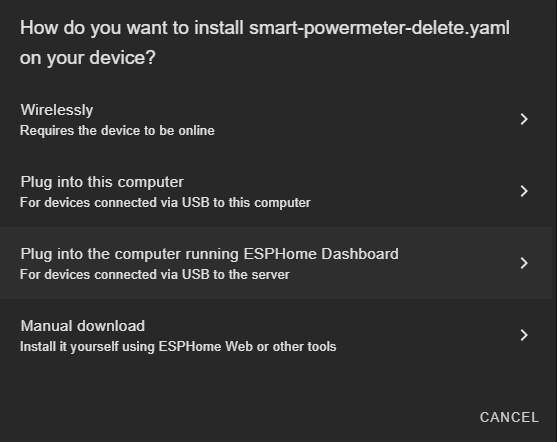
Select the Serial port and let it run, it might take some minutes.
Once it’s done, you will have to exit the flashing mode: press the Reset pushbutton once.
Now, your ESPHome-based Smart Plant should be ready to log data and stream it to your Home Assistant. Note that the current configuration is just an example and you can customize it at your will, including the calibration.
Tip
A very easy way to upload and copy files (code or even images) into your ESPHome folder hosted in your HA instance is with the help of the Visual Studio Code integration for HA. This way you can just drag and drop the files over the folder on the Home Assistant’s Visual Studio Code navigation panel on your left.
Flash Tools
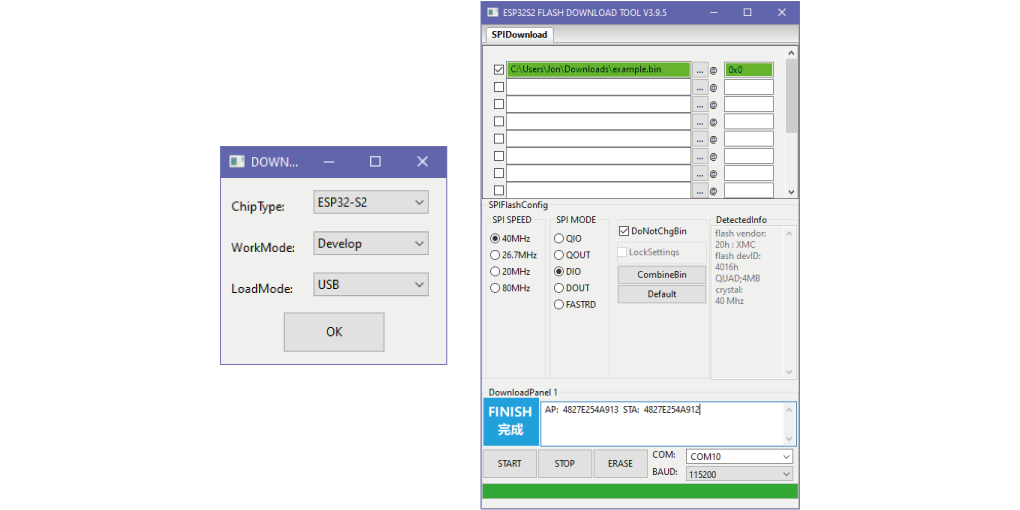
If you want to deploy an ESPHome already compiled .bin image, you can use Espressif’s official Flash Download Tools to upload it into your Smart Powermeter.
As an example (and test) you can use this smart-areca-v2r1-offline.bin image with the address 0x0, make sure DoNotChgBin is checked:
Arduino
If you are still interested in programming directly with the Arduino IDE, the procedure is no different than with any other ESP32 devices:
Open the Arduino IDE and go to File -> Preferences option.
Add to the Additional Boards Manager URSLs the url:
https://raw.githubusercontent.com/espressif/arduino-esp32/gh-pages/package_esp32_index.json
Close the preferences and open in the menu Tools -> Board -> Boards Manager.
Search for esp32 and install it. This might take some time.
Now you can select the board ESP32 Dev Module as the target board. Leave the rest of parameters by default.
Select the correct port and remember to enter the board into flashing mode before uploading the sketch.
Tip
Remember to check out the full Pinout